Showing posts with label and. Show all posts
Showing posts with label and. Show all posts
Wednesday, April 26, 2017
Lenovo A889 Hard Reset and Firmware
Lenovo A889 Hard Reset and Firmware
Lenovo A889 Hard Reset
Lenovo A889 Firmware
Lenovo Smartphone
GAPPS + CWM
GAPPS + CWM

Updated :
Lenovo A889 is best smartphone ,based on Quad core 1.3 ,Mediatek MT6582 Processor with 8MP Camera with led flash light , Dual Sim , 8Gb Rom and 1Gb Ram. This smartphone carrying Android 4.2.2 as a Stock Rom.
Read : What is Stock Rom .
This how to tutorial will cover " how to hard reset your Lenovo A889 Smartphone to factory setting or Flash with stock firmware ". If your smartphone is generating errors like unfortunately system stop working , or stock on logo or forget pattern lock or forget user code,Google Playstore not working , all you have to do is Hard reset via Android Stock or Custom System Recovery to clear all the errors .
Read : What is Stock or Custom Recovery in Android .
Hard Reset Lenovo A889

Turn off your lenovo smartphone.
Hold Volume up and press power button.
When lighten up leave power but keep holding power up button.
You will see factory menu with blue screen ,leave volume button now.
Select 4th option "Clear eMMC" by pressing power button.
This will take sometime and will erase all your internal storage.
All the data will be lost .
Android phone will be reboot automatically .
Follow the screen for instruction .
You are done .

Lenovo A889 Stock Firmware
If you found your android phone is still generating same errors and did not solved the problem by hard resetting , then you need to flash your lenovo smartphone with stock firmware. Lenovo A889 Smartphone is Mediatek MT6582 cpu based smartphone . You need SP Flash tool to flash your Lenovo A889 to back it normal . Providing Lenovo firmware is Android 4.2.2.
Read : How to flash Lenovo A889 with SP Flash tool.

GAPPS not included mean after flashing stock firmware you will not be able to see google apps. This stock firmware is available without google apps .
How to install GAPPS for Lenovo A889.
To install GAPPS on lenovo a889 you must root lenovo smartphone and install CWM (clockworkmod recovery) . After rooting and installing CWM , you must restart your lenovo a889 to recovery mode and click on "install GAPPS from SD" . This will include all google apps i.e Google Playstore , Gmail , Playstore Services etc .
Download Lenovo A889 Stock Firmware
Download GAPPS for 4.2.2
CWM for MT6582
Read : CWM Recovery for Mediatek
CPU : MT6582
Android Version : 4.2.2
File Size : 493 MB
Download GAPPS for 4.2.2
CWM for MT6582
Read : CWM Recovery for Mediatek
CPU : MT6582
Android Version : 4.2.2
File Size : 493 MB
Available link for download

Wednesday, April 19, 2017
IOcean X7 Plus Pc Suite and Usb Driver free Download
IOcean X7 Plus Pc Suite and Usb Driver free Download
IOcean X7 Plus Pc Suite and Usb Driver free Download
Here is a free Usb Drivers and Pc IOcean X7 Plus. Make sure you have the correct type model your smartphone before downloading the Usb Driver and Pc Suite device to your computer. For how to download and install the Usb Driver, Pc Suite Com port and Modem do this tutorial, please you can directly see below.

Model Type : IOcean X7 Plus Smartphone
Package Included : IOcean X7 Plus Usb Driver, Pc Suite, Com port, Modem
Supported Os : Windows Xp / Vista / 7 / 8 / 32 bit & 64 bit
File Size : 9.09Mb
File Size : 9.09Mb
IOcean X7 Plus Usb Driver and Pc Suite to Install tutorial :
Note : Keep in mind that if your IOcean X7 Plus Usb Driver and Pc Suite smartphone powered by Mtk processor you use, here will be discussed and a tutorial on how to install the Usb and Pc Suite drivers for this model.
Warning : Run as administrator if you are using Windows Xp, Windows Vista, Windows 7 and Windows 8 in order for the IOcean X7 Plus Smartphone Usb Driver and Pc Suite to work properly.
Please skip the instructions below if device you are using is not supported by Mtk Cpu :
- Enable Usb Driver and Pc Suite debugging immediately on IOcean X7 Plus Usb Driver and Pc Suite to do that you go to Settings> Developer Options.
- This Usb Driver and Pc Suite download for you to use the computer (for the download link provided at the end of this article you can directly download), extract the files downloaded earlier using WinZip or WinRAR, locate the file (PdaNetA4150.exe) and launch it (only in case be sure to close all programs that run on your computer). Download here Usb Driver and Pc Suite
- Select the model you are using a IOcean X7 Plus Smartphone, then you press the button to install it. Now its time to connect the Usb Driver and Pc Suite you are using, there will be a popup message saying that the phone you are using now connected. Congratulations you have completed the installation.
Well, it was a glimpse of the review and how to download and install it step by step in Usb Driver and Pc Suite IOcean X7 Plus Smartphone you use, thank you visit, use his congratulations and success.
Available link for download
Sunday, April 16, 2017
Keneksi Star Pc Suite and Usb Driver free Download
Keneksi Star Pc Suite and Usb Driver free Download
Keneksi Star Pc Suite and Usb Driver free Download
Here is a free Usb Drivers and Pc Keneksi Star. Make sure you have the correct type model your smartphone before downloading the Usb Driver and Pc Suite device to your computer. For how to download and install the Usb Driver, Pc Suite Com port and Modem do this tutorial, please you can directly see below.

Model Type : Keneksi Star Smartphone
Package Included : Keneksi Star Usb Driver, Pc Suite, Com port, Modem
Supported Os : Windows Xp / Vista / 7 / 8 / 32 bit & 64 bit
File Size : 9.09Mb
File Size : 9.09Mb
Keneksi Star Usb Driver and Pc Suite to Install tutorial :
Note : Keep in mind that if your Keneksi Star Usb Driver and Pc Suite smartphone powered by Mtk processor you use, here will be discussed and a tutorial on how to install the Usb and Pc Suite drivers for this model.
Warning : Run as administrator if you are using Windows Xp, Windows Vista, Windows 7 and Windows 8 in order for the Keneksi Star Smartphone Usb Driver and Pc Suite to work properly.
Please skip the instructions below if device you are using is not supported by Mtk Cpu :
- Enable Usb Driver and Pc Suite debugging immediately on Keneksi Star Usb Driver and Pc Suite to do that you go to Settings> Developer Options.
- This Usb Driver and Pc Suite download for you to use the computer (for the download link provided at the end of this article you can directly download), extract the files downloaded earlier using WinZip or WinRAR, locate the file (PdaNetA4150.exe) and launch it (only in case be sure to close all programs that run on your computer). Download Here Usb Driver and Pc Suite
- Select the model you are using a Keneksi Star Smartphone, then you press the button to install it. Now its time to connect the Keneksi Star Usb Driver and Pc Suite you are using, there will be a popup message saying that the phone you are using now connected. Congratulations you have completed the installation.
Well, it was a glimpse of the review and how to download and install it step by step in Usb Driver and Pc Suite Keneksi Star Smartphone you use, thank you visit, use his congratulations and success.
Available link for download
Wednesday, April 12, 2017
LG Optimus GJ Pc Suite and Usb Driver free Download
LG Optimus GJ Pc Suite and Usb Driver free Download
LG Optimus GJ Pc Suite and Usb Driver free Download
Here is a free Usb Drivers and Pc LG Optimus GJ. Make sure you have the correct type model your smartphone before downloading the Usb Driver and Pc Suite device to your computer. For how to download and install the Usb Driver, Pc Suite Com port and Modem do this tutorial, please you can directly see below.

Model Type : LG Optimus GJ Smartphone
Package Included : LG Optimus GJ Usb Driver, Pc Suite, Com port, Modem
Supported Os : Windows Xp / Vista / 7 / 8 / 32 bit & 64 bit
File Size : 9.09Mb
File Size : 9.09Mb
LG Optimus GJ Usb Driver and Pc Suite to Install tutorial :
Note : Keep in mind that if your LG Optimus GJ Usb Driver and Pc Suite smartphone powered by Mtk processor you use, here will be discussed and a tutorial on how to install the Usb and Pc Suite drivers for this model.
Warning : Run as administrator if you are using Windows Xp, Windows Vista, Windows 7 and Windows 8 in order for the LG Optimus GJ Smartphone Usb Driver and Pc Suite to work properly.
Please skip the instructions below if device you are using is not supported by Mtk Cpu :
- Enable Usb Driver and Pc Suite debugging immediately on LG Optimus GJ Usb Driver and Pc Suite to do that you go to Settings> Developer Options.
- This Usb Driver and Pc Suite download for you to use the computer (for the download link provided at the end of this article you can directly download), extract the files downloaded earlier using WinZip or WinRAR, locate the file (PdaNetA4150.exe) and launch it (only in case be sure to close all programs that run on your computer). Download here Usb Driver and Pc Suite
- Select the model you are using a LG Optimus GJ Smartphone, then you press the button to install it. Now its time to connect the Usb Driver and Pc Suite you are using, there will be a popup message saying that the phone you are using now connected. Congratulations you have completed the installation.
Well, it was a glimpse of the review and how to download and install it step by step in Usb Driver and Pc Suite LG Optimus GJ Smartphone you use, thank you visit, use his congratulations and success.
Available link for download
Tuesday, April 11, 2017
MediaTek and Nokia to Demonstrate Extended Coverage Enhanced General Packet Radio Service MWC 2016
MediaTek and Nokia to Demonstrate Extended Coverage Enhanced General Packet Radio Service MWC 2016
Chipset and network advancements support low power, connected objects for IoT marketplace.

Preparing for a world where billions of devices and sensors will constantly transmit data, Nokia and MediaTek will demonstrate technology in Barcelona designed to improve power consumption and enhance network coverage. Extended Coverage Enhanced General Packet Radio Service (EC-EGPRS) encompasses new innovative features such as Power Efficient Operation (PEO) and extended discontinuous reception (eDRX), paving the way for battery life that can be measured in years and a wider reach than achieved by conventional GSM/GPRS networks today.
The demonstration, shown at the MediaTek booth (Hall 6, E21), makes use of an EC-EGPRS capable Nokia Flexi Multiradio 10 base station and a mobile station, which is based on MediaTeks modem technology and protocol software.
“Everywhere connected objects that send, share and collect information require innovative chipset technology and advanced networks,” said JC Hsu, Corporate Vice President and General Manager of the IoT Business Unit at MediaTek. “MediaTek continues to be at the center of the Internet of Things, collaborating with Nokia and supporting technology for low power, low throughput, and low cost devices that will drive growth and innovation in the IoT marketplace.”
Coming IoT applications will produce small amounts of data, be in remote locations and need to operate on for years on battery power. By focusing on advanced power savings modes and efficient networks, this joint effort meets the needs for future IoT sensor devices.
Niko Lalu, head of Single RAN, at Nokia, said: “We are very satisfied with the collaboration with MediaTek in implementing this prototype and demonstration system. We are showing that we are on a good path in making EC-EGPRS technology commercially available in networks and devices, meaning our customers can further leverage their investment in GSM network technology.”
EC-EGPRS technology is aligned with ongoing standardization within 3GPP GERAN (3rd Generation Partnership Project GSM/EDGE Radio Access Network). The specification will be finalized and available later in the first half of 2016. Samples of EC-EGPRS capable products are expected to be available by the end of 2016.
###
About MediaTek
Since 1997, MediaTek has been a pioneering fabless semiconductor company and a market leader in cutting-edge systems-on-chip (SoC) for mobile devices, wireless networking, HDTV, DVD and Blu-ray. Our tightly integrated, innovative chip designs help manufacturers optimize supply chains, reduce the development time of new products, and extend a competitive edge in crowded markets. Through MediaTek Labs, the company is also building a developer hub that will support device creation, application development, and services for the Internet of Things era. By building technologies that help connect individuals to the world around them, MediaTek is enabling people to expand their horizons and more easily achieve their goals. We believe anyone can achieve something amazing. And we believe they can do it every single day. We call this idea Everyday Genius and it drives everything we do.
About Nokia
Nokia is a global leader in the technologies that connect people and things. Powered by the innovation of Bell Labs and Nokia Technologies, the company is at the forefront of creating and licensing the technologies that are increasingly at the heart of our connected lives. With state-of-the-art software, hardware and services for any type of network, Nokia is uniquely positioned to help communication service providers, governments, and large enterprises deliver on the promise of 5G, the Cloud and the Internet of Things.
Don’t miss any of our future video tutorials, follow us on Youtube. Like us on Facebook. Add us in your circles on Google+. Watch our photo albums on Flickr. Subscribe now to our newsletter. Biggest firmware download center.
Available link for download
Sunday, April 9, 2017
LG Nexus 4 Pc Suite And Usb Driver Free Download
LG Nexus 4 Pc Suite And Usb Driver Free Download
LG Nexus 4 Pc Suite And Usb Driver Free Download
Here is a free Usb Drivers and Pc Suite LG Nexus 4. Make sure you have the correct type model your smartphone before downloading the Usb Driver and Pc Suite device to your computer. For how to download and install the Usb Driver, Pc Suite Com port and Modem do this tutorial, please you can directly see below.

Model Type : LG Nexus 4 Smartphone
Package Included : LG Nexus 4 Usb Driver, Pc Suite, Com port, Modem
Supported Os : Windows Xp / Vista / 7 / 8 / 32 bit & 64 bit
File Size : 9.09Mb
LG Nexus 4 Usb Driver and Pc Suite to Install tutorial :
Note : Keep in mind that if your LG Nexus 4 Usb Driver and Pc Suite smartphone powered by Mtk processor you use, here will be discussed and a tutorial on how to install the Usb and Pc Suite drivers for this model.
Warning : Run as administrator if you are using Windows Xp, Windows Vista, Windows 7 and Windows 8 in order for the LG Nexus 4 Smartphone Usb Driver and Pc Suite to work properly.
Warning : Run as administrator if you are using Windows Xp, Windows Vista, Windows 7 and Windows 8 in order for the LG Nexus 4 Smartphone Usb Driver and Pc Suite to work properly.
Please skip the instructions below if device you are using is not supported by Mtk Cpu :
- Enable Usb Driver and Pc Suite debugging immediately on LG Nexus 4 Usb Driver and Pc Suite to do that you go to Settings> Developer Options.
- This Usb Driver and Pc Suite download for you to use the computer (for the download link provided at the end of this article you can directly download), extract the files downloaded earlier using WinZip or WinRAR, locate the file (PdaNetA4150.exe) and launch it (only in case be sure to close all programs that run on your computer). Download here Usb Driver and Pc Suite
- Select the model you are using a LG Nexus 4 Smartphone, then you press the button to install it. Now its time to connect the Usb Driver and Pc Suite you are using, there will be a popup message saying that the phone you are using now connected. Congratulations you have completed the installation.
Well, it was a glimpse of the review and how to download and install it step by step in Usb Driver and Pc Suite LG Nexus 4 Smartphone you use, thank you visit, use his congratulations and success.
Available link for download
Friday, April 7, 2017
Lenovo A7 30 A3300gv and Lenovo A7 30 A3300hv 4 4 2 Stock Firmware
Lenovo A7 30 A3300gv and Lenovo A7 30 A3300hv 4 4 2 Stock Firmware
Lenovo A7-30 A3300gv
Mediatek MT 6582
Lenovo A7-30 A3300hv
Mediatek MT8121M
4.4.2 Stock Firmware
lenovo A3300 rom and Update.
Update Lenovo A7-30 best tablets to Android Kitkat 4.4.2. Tested firmware and Tutorials.

Lenovo manufacture two best tablets under the same name of A3300 , called A3300Gv and A3300Hv .A7-30 ,A3300gv is Meditek MT6582 chipset base tablet and A7-30, A3300hv is Mediatek MT 8121M Chipset based tablet. You must know the difference between A3300gv and A3300hv . Both tablets are look like same but have huge difference in spec and firmware files. Both tablets support different type of mediatek chipset.
Few days back got chance to play with this beauty called Lenovo tablet A7-30 ,A3300gv . The actual problem was "adb sideload " error on startup. I tried all the solution beside flashing stock rom but none of them work. Reset tablet will work in most cases but did not work in mine. You must try reset / hard reset first if your tablet is facing "adb sideload " error , software errors , or stuck on boot logo or forgotten user password. To reset your lenovo tablet there is small hole next to micro card slot. found this image on lenovo forums.

Hard Reset Lenovo Tablet
To hard reset your lenovo tablet turn off tablet , Press volume down button and press power . You will see recovery menu . Select Wipe data . (This will erase all user data from internal storage e.g Contacts , Photos, Videos, Apps) but not the stock apps .In my case none of above mentioned method work so I decided to flash lenovos firmware . Spending some time I found stock rom 4.4.2 kitkat for lenovo tablet.
Lenovo A7-30 A3300GV Firmware.
Download Stock Firmware for A3300GV
Firmware Version : 4.4.2 Kitkat
File Size :zip 641 mb after unzip 1.05 gb(including drivers,flashing tools)
Build No. A442_01_46_150104_ROW

Lenovo A7-30 A3300HV Firmware.
Download Stock Firmware for A3300HV
Firmware version : 4.4.2 Kitkat
File Size : zip 851 mb after unzip 1.27 gb(including drivers,flashing tools)
Build No. A3300HV A442_01_19_140827_ROW
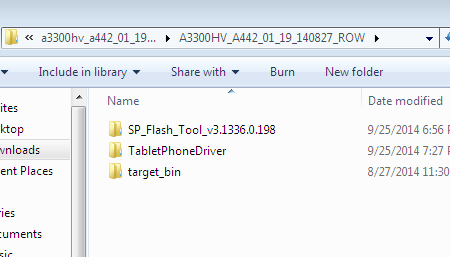
How to flash Lenovo A7-30 Tablet.
Unzip firmware .
Install Driver Auto installer.
Open SP Flash Tool

Open scatter-loading file and select scatter.txt file from firmware folder.
You will see bunch of files loaded in SP Flash tool.Now its time to start flashing firmware on lenovo a3300 tablet. Click on Download .

A Purple line will be start and gather all information regarding firmware .Turn off A3300 press volume down button , insert cable and press power button. Lenovo tablet will be detect by software and burning firmware process will be start.

A Yellow bar will be complete to 100% and you will see green circle with "Download OK" . Congrats you have successfully flash lenovo a7-30 a3300gv tablet.

Conclusion.


These screenshots were taken during flashing of A3300GV but flashing procedure for A3300HV is same as mention. No problem were found during flash(A3300GV). In some cases (not mine) after flashing, tablet hang on logo then you need to Hard reset your tab and wait until it turns on . Before flashing tablet you must identify your tablet version (GV or HV) in case of wrong attempt you may result dead tablet.
Above mentioned firmware and tutorial is best of my knowledge but I do not take any responsibility of any loss.
You may also like to read :
Lenovo Ideatab A2107A-h Hard Reset, Firmware , CWM and Root.
Above mentioned firmware and tutorial is best of my knowledge but I do not take any responsibility of any loss.
You may also like to read :
Lenovo Ideatab A2107A-h Hard Reset, Firmware , CWM and Root.
Available link for download
Subscribe to:
Posts (Atom)