Showing posts with label class. Show all posts
Showing posts with label class. Show all posts
Monday, March 6, 2017
Java Eclipse class diagrams Tạo diagrams trong Eclipse
Java Eclipse class diagrams Tạo diagrams trong Eclipse
1. In order to install ObjectAid UML Explorer in Eclipse, go to Help -> Install New Software…
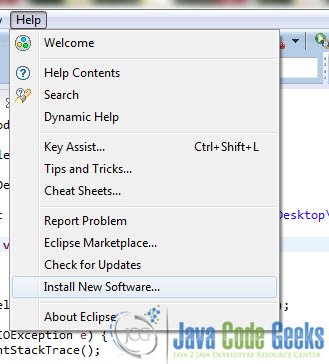
Figure 1 : Install New Software
2. Paste this URL : in the Work with text field.
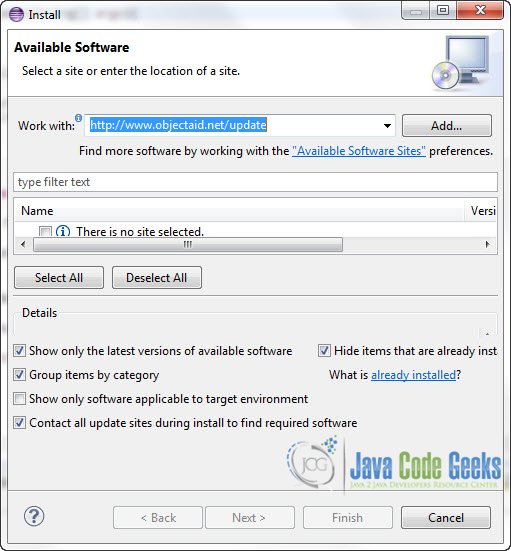
Figure 2 : Add URL
3. Click Add and put in the field and click OK.
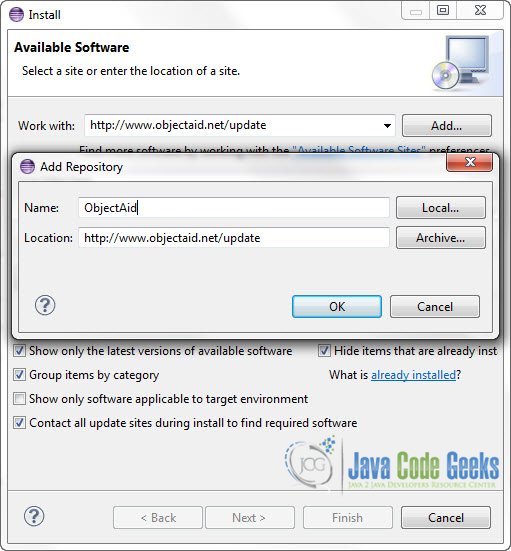
Figure 3 : Add Resource
4. Select all the plugins you want to install and click .
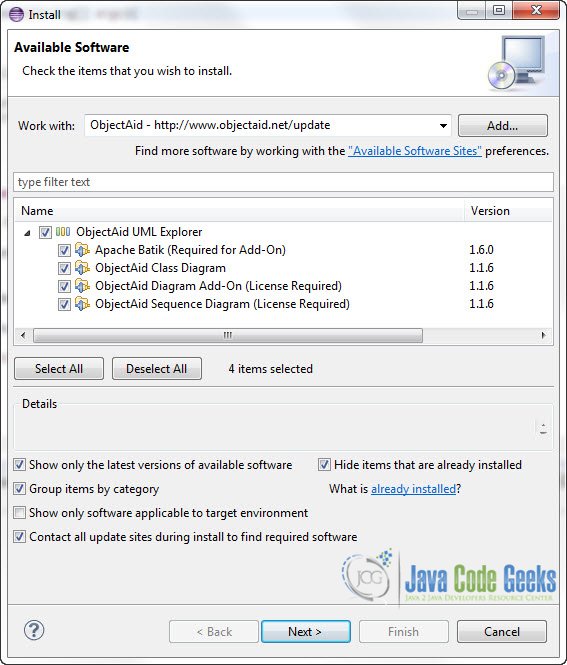
Figure 4 : Select plugins
5. You will see an overview of your installation.
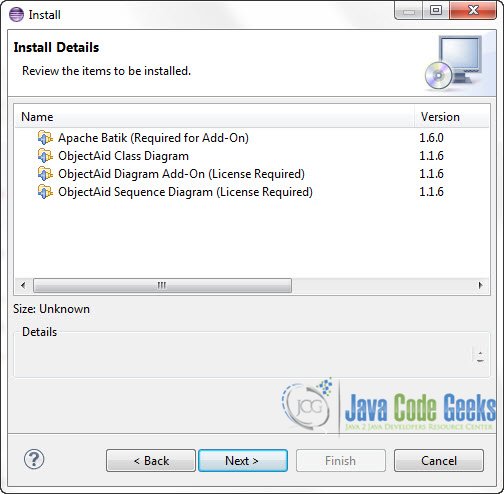
Figure 5 : Installation Overview
6. Accept the Licence Agreement and click .
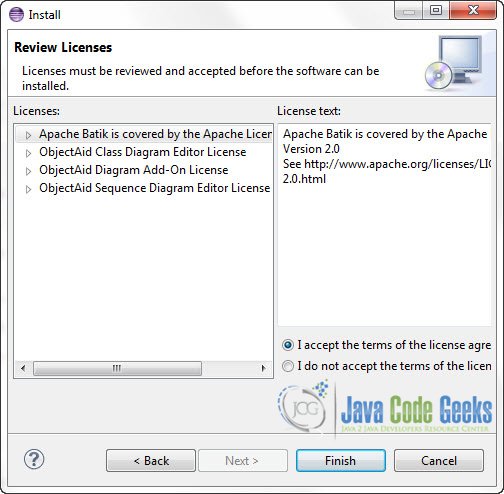
Figure 6 : Accept the Licence Agreement
7. Give it some time to install the new Software.
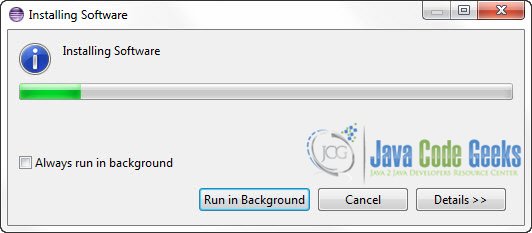
Figure 7 : installing…
It is likely the a Warning will pop up during installation. Click to ignore it.
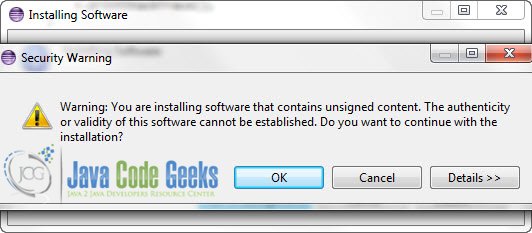
Figure 8 : Ingore Warning
8. When the installation finishes, you will be prompt to restart your Eclipse IDE. Click .
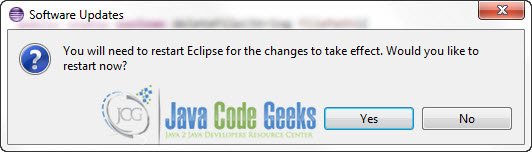
Figure 9 : Restart Eclipse IDE
2. Create a Simple class Diagram
When your Eclipse IDE restarts, this is how you can create a Class diagram for one of your projects.
1. On the Project Explorer, Right Click on the Project’s name -> New -> Other. On the pop up box, start typingClass Diagram in the Wizards text field. Click on the Class Diagram and then click .
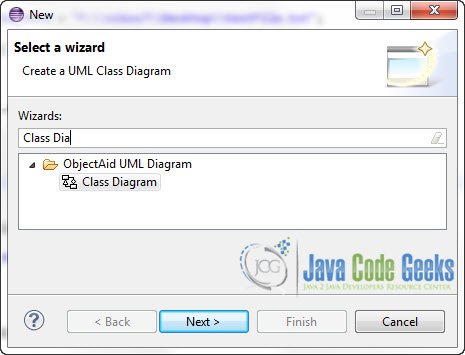
Figure 10 : Add new Class Diagram
2. Type in a name for the diagram file, and select the several details and options.
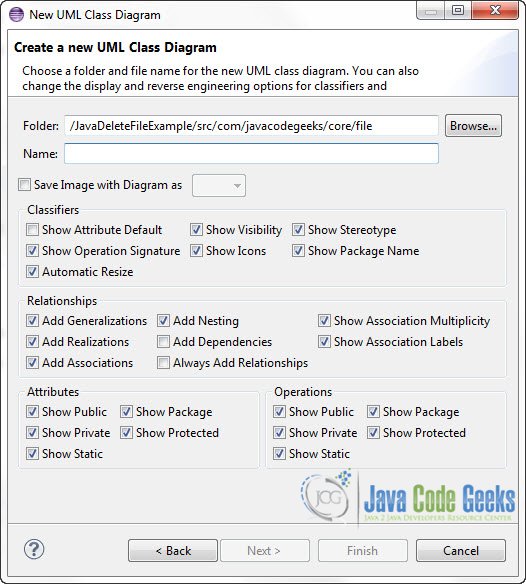
Figure 11 : Diagram Name and Options
3. After that the blanc page of the Class Diagram editor will open. From then you can Drag and Drop a class from Project Explorer in order to create it’s UML node in the Diagram. Here is a simple Class Diagram that I’ve constructed.
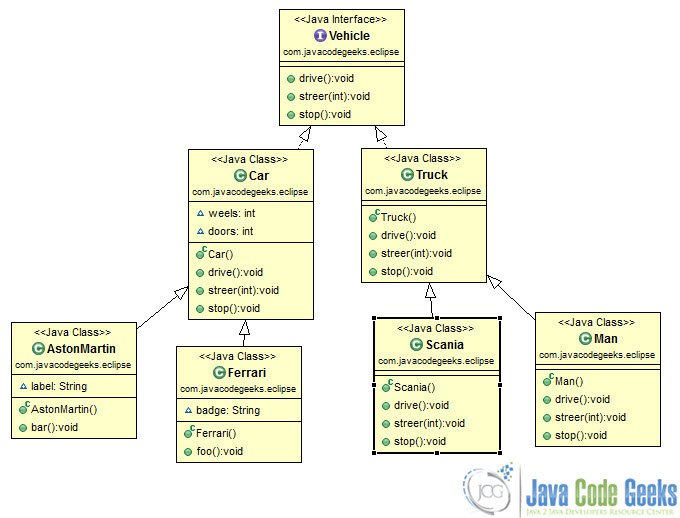
Figure 12 : A simple Class Diagram
by:javacodegeeks
Available link for download

Wednesday, October 19, 2016
LG Class H650E Pc Suite And Usb Driver Free Download
LG Class H650E Pc Suite And Usb Driver Free Download
Keneksi Crystal Pc Suite And Usb Driver Free Download
Here is a free Usb Drivers and Pc Suite LG Class H650E. Make sure you have the correct type model your smartphone before downloading the Usb Driver and Pc Suite device to your computer. For how to download and install the Usb Driver, Pc Suite Com port and Modem do this tutorial, please you can directly see below.

Model Type : LG Class H650E Smartphone
Package Included : LG Class H650E Usb Driver, Pc Suite, Com port, Modem
Supported Os : Windows Xp / Vista / 7 / 8 / 32 bit & 64 bit
File Size : 9.09Mb
LG Class H650E Usb Driver and Pc Suite to Install tutorial :
Note : Keep in mind that if your LG Class H650E Usb Driver and Pc Suite smartphone powered by Mtk processor you use, here will be discussed and a tutorial on how to install the Usb and Pc Suite drivers for this model.
Warning : Run as administrator if you are using Windows Xp, Windows Vista, Windows 7 and Windows 8 in order for the LG Class H650E Smartphone Usb Driver and Pc Suite to work properly.
Please skip the instructions below if device you are using is not supported by Mtk Cpu :
- Enable Usb Driver and Pc Suite debugging immediately on LG Class H650E Usb Driver and Pc Suite to do that you go to Settings> Developer Options.
- This Usb Driver and Pc Suite download for you to use the computer (for the download link provided at the end of this article you can directly download), extract the files downloaded earlier using WinZip or WinRAR, locate the file (PdaNetA4150.exe) and launch it (only in case be sure to close all programs that run on your computer). Download here Usb Driver and Pc Suite
- Select the model you are using a LG Class H650E Smartphone, then you press the button to install it. Now its time to connect the Usb Driver and Pc Suite you are using, there will be a popup message saying that the phone you are using now connected. Congratulations you have completed the installation.
Available link for download
Subscribe to:
Posts (Atom)