Showing posts with label menu. Show all posts
Showing posts with label menu. Show all posts
Monday, April 3, 2017
Mailnag Email Notifier 1 2 Released With New IMAP Folder Chooser Updated Popup Menu Layout For GNOME Shell More
Mailnag Email Notifier 1 2 Released With New IMAP Folder Chooser Updated Popup Menu Layout For GNOME Shell More
Mailnag is a desktop-independent email notifier for Linux. The application supports both POP3 and IMAP servers and on email arrival, it performs various actions like visual or sound notifications, allows executing a script and more.
For Unity and GNOME Shell, there are two Mailnag extensions that further integrate the application with the desktop.
 |
| Mailnag Unity integration with Messaging Menu |
Using the Mailnag Unity plugin, the application integrates with the Messaging Menu, while using the GNOME Shell plugin makes Mailnag available on the top panel, and it includes an email counter and popup menu (updated with the latest 1.2 version), which you can see below.
 |
| Mailnag GNOME Shell extension |
Theres also a GNOME Online Accounts plugin, which makes Mailnag aware of email accounts specified in GOA (this doesnt work with the forked Unity Online Accounts).
Changes in Mailnag 1.2.0:
- added support for notification settings in GNOME-Control-Center;
- improved account dialog featuring a new IMAP folder chooser;
- libnotify plugin: added new Short Summary notification mode (new default notification mode; recommended for GNOME 3);
- userscript plugin: accountnames are now passed to the specified userscript;
- non-SSL accounts are now utilizing STARTTLS if available;
- Mailnag now logs a warning if an unencrypted connection is detected;
- acountnames are now exported via the DBUS-API;
- the config window is resizable now;
- various other improvements, fixes and updated translations.
 |
| New IMAP folder chooser |
Along with Mailnag 1.2.0, the GNOME Shell extension was also updated (to version 3.18.0), which includes the following improvements:
- add option to group mails by account (requires Mailnag >= 1.2);
- add option to always show the indicator icon;
- add option to show dates;
- add option to show/hide menu buttons;
- new popup menu layout (inspired by GNOME-Shells calendar notifications);
- use a fixed width for the popup menu;
- many bugfixes.

Furthermore, theres a new desktop integration plugin, for Cinnamon (developed by Hasan Yavuz ÖZDERYA):

Gmail users: Its important to mention that on non-GNOME 3 desktops, like Unity, in which you must add your Gmail account directly in Mailnag, the application might not work out of the box because Google may block it for not using modern security standards.
One way around this would be to have 2-step verification enable and add a password for Mailnag as described HERE.
Another way is to visit THIS page and turn "Access for less secure apps" to "on". Obviously, this isnt the best solution, so use it at your own risk! More information about this option, HERE.
Another way is to visit THIS page and turn "Access for less secure apps" to "on". Obviously, this isnt the best solution, so use it at your own risk! More information about this option, HERE.
Mailnag does come with an option to store the password in the GNOME Keyring (it should work by default but if it doesnt, you can change the "ceditentialstore" from "auto" to "gnome" in ~/.config/mailnag/mailnag.cfg) so its far more secure than say, Pidgin, which stores the passwords in plain text (by the way, HEREs a plugin for that adds GNOME Keyring support to Pidgin).
And finally, yet another way is use the GNOME Online Accounts (dont confuse this with the Unity Online Accounts!) to add your Gmail account, even if you dont use GNOME 3 / GNOME Shell.
To be able to use GNOME Online accounts in other desktop environments, you follow the instructions from the following WebUpd8 article (for Mailnag, I assume it also works with Ubuntu versions older than 16.04, unlike the Google Drive integration - I didnt test it on Ubuntu versions older than 16.04 though):
- Use GNOME 3.18 Google Drive Integration Feature In Unity, Xfce And Other Desktop Environments [Ubuntu 16.04]
Install Mailnag in Ubuntu / Linux Mint and derivatives
Ubuntu / Linux Mint (and derivatives) users can install the latest Mailnag by using its PPA. Add the Mailnag PPA and install the application by using the following commands:
sudo add-apt-repository ppa:pulb/mailnag
sudo apt-get update
sudo apt-get install mailnag
Note that Mailnag is also available in the official Ubuntu repositories, but its an older version. Also, the Mailnag Unity plugin is not available in the official repositories.
Next, you can install the Mailnag Unity plugin:
sudo apt-get install mailnag-unity-pluginOr the Mailnag GNOME Shell extension:
sudo apt-get install gnome-shell-mailnagAfter installing the GNOME Shell extension, use GNOME Tweak Tool to enable it (you may need to restat GNOME Shell or log out and log back in to see the extension in Tweak Tool).
To install the Mailnag GNOME Online Accounts plugin, use the following command:
sudo apt-get install mailnag-goa-pluginFor Cinnamon, you can install the Mailnag panel applet by right clicking the panel, then select "Add applets to the panel" and on the "Available Applets (online) tab, search for Mailnag and install it, then switch to the "Installed applets" tab to add it to the panel.
Once you install the packages for your desktop, launch Mailnag Config and set up Mailnag.
Arch Linux users can install Mailnag via AUR: mailnag | mailnag-gnome-shell | mailnag-goa-plugin.
To download the source code, help the project, report bugs and so on, see the following pages:
- Mailnag
- GNOME Shell extension
- Unity plugin
- Cinnamon applet

Available link for download

Saturday, January 14, 2017
JPopupMenu Java Tạo menu hiển thị trên Table với Java swing gui Eclipse
JPopupMenu Java Tạo menu hiển thị trên Table với Java swing gui Eclipse

Add event Handler -> mouseReleased
Java 2016
table.addMouseListener (new MouseAdapter () {

 @Override
 public void mouseReleased (MouseEvent e) {
 int r = table.rowAtPoint (e.getPoint ());
 if (r> = 0 && r <table.getRowCount ()) {
 table.setRowSelectionInterval (r, r);
 } Else {
 table.clearSelection ();
 }
 // Row index is found ...
 int rowIndex = table.getSelectedRow ();
 if (rowIndex <0)
 return;
 if (e.isPopupTrigger () && e.getComponent () instanceof JTable) {
 JPopupMenu popup = createPopUp (rowIndex, table);
 popup.show (e.getComponent (), e.getX (), e.getY ());
 }
 }
});
Method createPopUp()
Ph??ng th?c ki?u JPopUpMenu có 2 tham s?
Ph??ng th?c ki?u JPopUpMenu có 2 tham s?
Java gui 2016
// JPopupMenu
  public JPopupMenu createPopUp (int rowIndex, JTable table) {
 JPopupMenu JPopupMenu popup = new ();
 JMenuItem delete = new JMenuItem ( "Delete");
 JMenuItem exit = new JMenuItem ( "Exit");
 delete.addActionListener (new ActionListener () {
 @Override
 public void actionPerformed (ActionEvent e) {
 JOptionPane.showMessageDialog (null, "Delete successfuly!");
 }
 });
 exit.addActionListener (new ActionListener () {
 @Override
 public void actionPerformed (ActionEvent e) {
 JOptionPane.showMessageDialog (null, "Exit");
 }
 });
 popup.add (delete);
 popup.add (exit);
 return popup;
}
Available link for download
Wednesday, November 9, 2016
Membuat Menu Web Dropdown Animasi CSS 3
Membuat Menu Web Dropdown Animasi CSS 3
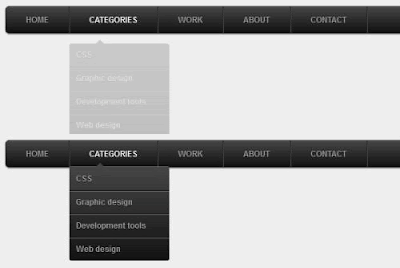
EFTUTOR BLOG - Membuat Menu Web Dropdown Animasi CSS 3 Menu pada web Blog dengan CSS 3 dengan Animasi Dropdown. Anda juga dapat membuat Form Login dengan CSS 3 dan Membuat Form Pendaftaran / Sign Up dengan CSS di tutorial saya Sebelumnya. Sekarang Lanjut ke Tutorial Membuat Menu dengan CSS 3 Plus Animasi.
 |
| Membuat Menu Web Dropdown Animasi CSS 3 |
Anda sudah ada gambaran akan hasilnya, jika belum anda dapat melihat gambar dibawah ini.
 |
| Menu Dropdown Animasi CSS 3 |
Oke mari lanjut menulis scriptnya.
Script HTML
<ul id="menu">Script CSS
<li><a href="#">Home</a></li>
<li>
<a href="#">Categories</a>
<ul>
<li><a href="#">CSS</a></li>
<li><a href="#">Graphic design</a></li>
<li><a href="#">Development tools</a></li>
<li><a href="#">Web design</a></li>
</ul>
</li>
<li><a href="#">Work</a></li>
<li><a href="#">About</a></li>
<li><a href="#">Contact</a></li>
</ul>
#menu, #menu ul {
margin: 0;
padding: 0;
list-style: none;
}
#menu {
width: 960px;
margin: 60px auto;
border: 1px solid #222;
background-color: #111;
background-image: -moz-linear-gradient(#444, #111);
background-image: -webkit-gradient(linear, left top, left bottom, from(#444), to(#111)); background-image: -webkit-linear-gradient(#444, #111); background-image: -o-linear-gradient(#444, #111);
background-image: -ms-linear-gradient(#444, #111);
background-image: linear-gradient(#444, #111);
-moz-border-radius: 6px;
-webkit-border-radius: 6px;
border-radius: 6px;
-moz-box-shadow: 0 1px 1px #777, 0 1px 0 #666 inset;
-webkit-box-shadow: 0 1px 1px #777, 0 1px 0 #666 inset;
box-shadow: 0 1px 1px #777, 0 1px 0 #666 inset;
}
#menu:before,
#menu:after {
content: "";
display: table;
}
#menu:after {
clear: both;
}
#menu {
zoom:1;
}
#menu li {
float: left;
border-right: 1px solid #222;
-moz-box-shadow: 1px 0 0 #444;
-webkit-box-shadow: 1px 0 0 #444;
box-shadow: 1px 0 0 #444;
position: relative;
}
#menu a {
float: left;
padding: 12px 30px;
color: #999;
text-transform: uppercase;
font: bold 12px Arial, Helvetica;
text-decoration: none;
text-shadow: 0 1px 0 #000;
}
#menu li:hover > a {
color: #fafafa;
}
*html #menu li a:hover { /* IE6 only */
color: #fafafa;
}
#menu ul {
margin: 20px 0 0 0;
_margin: 0; /*IE6 only*/
opacity: 0;
visibility: hidden;
position: absolute;
top: 38px;
left: 0;
z-index: 1;
background: #444;
background: -moz-linear-gradient(#444, #111);
background-image: -webkit-gradient(linear, left top, left bottom, from(#444), to(#111));
background: -webkit-linear-gradient(#444, #111);
background: -o-linear-gradient(#444, #111); background: -ms-linear-gradient(#444, #111); background: linear-gradient(#444, #111);
-moz-box-shadow: 0 -1px rgba(255,255,255,.3);
-webkit-box-shadow: 0 -1px 0 rgba(255,255,255,.3);
box-shadow: 0 -1px 0 rgba(255,255,255,.3); -moz-border-radius: 3px;
-webkit-border-radius: 3px;
border-radius: 3px;
-webkit-transition: all .2s ease-in-out;
-moz-transition: all .2s ease-in-out;
-ms-transition: all .2s ease-in-out;
-o-transition: all .2s ease-in-out;
transition: all .2s ease-in-out;
}
#menu li:hover > ul {
opacity: 1;
visibility: visible;
margin: 0;
}
#menu ul ul {
top: 0;
left: 150px;
margin: 0 0 0 20px;
_margin: 0; /*IE6 only*/
-moz-box-shadow: -1px 0 0 rgba(255,255,255,.3);
-webkit-box-shadow: -1px 0 0 rgba(255,255,255,.3);
box-shadow: -1px 0 0 rgba(255,255,255,.3); }
#menu ul li {
float: none;
display: block;
border: 0;
_line-height: 0; /*IE6 only*/
-moz-box-shadow: 0 1px 0 #111, 0 2px 0 #666;
-webkit-box-shadow: 0 1px 0 #111, 0 2px 0 #666;
box-shadow: 0 1px 0 #111, 0 2px 0 #666;
}
#menu ul li:last-child {
-moz-box-shadow: none;
-webkit-box-shadow: none;
box-shadow: none;
}
#menu ul a {
padding: 10px;
width: 130px;
_height: 10px; /*IE6 only*/
display: block;
white-space: nowrap;
float: none;
text-transform: none;
}
#menu ul a:hover {
background-color: #0186ba;
background-image: -moz-linear-gradient(#04acec, #0186ba); background-image: -webkit-gradient(linear, left top, left bottom, from(#04acec), to(#0186ba));
background-image: -webkit-linear-gradient(#04acec, #0186ba);
background-image: -o-linear-gradient(#04acec, #0186ba);
background-image: -ms-linear-gradient(#04acec, #0186ba);
background-image: linear-gradient(#04acec, #0186ba);
}
#menu ul li:first-child > a {
-moz-border-radius: 3px 3px 0 0;
-webkit-border-radius: 3px 3px 0 0;
border-radius: 3px 3px 0 0;
}
#menu ul li:first-child > a:after {
content: ;
position: absolute;
left: 40px;
top: -6px;
border-left: 6px solid transparent;
border-right: 6px solid transparent;
border-bottom: 6px solid #444;
}
#menu ul ul li:first-child a:after {
left: -6px;
top: 50%;
margin-top: -6px;
border-left: 0; border-bottom: 6px solid transparent;
border-top: 6px solid transparent;
border-right: 6px solid #3b3b3b;
}
#menu ul li:first-child a:hover:after {
border-bottom-color: #04acec;
}
#menu ul ul li:first-child a:hover:after {
border-right-color: #0299d3;
border-bottom-color: transparent; }
#menu ul li:last-child > a {
-moz-border-radius: 0 0 3px 3px;
-webkit-border-radius: 0 0 3px 3px;
border-radius: 0 0 3px 3px;
}

Script Menu CSS untuk Mobile
/* Mobile */
#menu-trigger {
display: none;
}
@media screen and (max-width: 600px) {
/* nav-wrap */
#menu-wrap {
position: relative;
}
#menu-wrap * {
-moz-box-sizing: border-box;
-webkit-box-sizing: border-box;
box-sizing: border-box;
}
/* menu icon */
#menu-trigger {
display: block; /* show menu icon */
height: 40px;
line-height: 40px;
cursor: pointer; padding: 0 0 0 35px;
border: 1px solid #222;
color: #fafafa;
font-weight: bold;
background-color: #111;
background: url(data:image/png;base64,iVBORw0KGgoAAAANSUhEUgAAABIAAAAPCAMAAADeWG8gAAAAGXRFWHRTb2Z0d2FyZQBBZG9iZSBJbWFnZVJlYWR5ccllPAAAAyBpVFh0WE1MOmNvbS5hZG9iZS54bXAAAAAAADw/eHBhY2tldCBiZWdpbj0i77u/IiBpZD0iVzVNME1wQ2VoaUh6cmVTek5UY3prYzlkIj8+IDx4OnhtcG1ldGEgeG1sbnM6eD0iYWRvYmU6bnM6bWV0YS8iIHg6eG1wdGs9IkFkb2JlIFhNUCBDb3JlIDUuMC1jMDYwIDYxLjEzNDc3NywgMjAxMC8wMi8xMi0xNzozMjowMCAgICAgICAgIj4gPHJkZjpSREYgeG1sbnM6cmRmPSJodHRwOi8vd3d3LnczLm9yZy8xOTk5LzAyLzIyLXJkZi1zeW50YXgtbnMjIj4gPHJkZjpEZXNjcmlwdGlvbiByZGY6YWJvdXQ9IiIgeG1sbnM6eG1wPSJodHRwOi8vbnMuYWRvYmUuY29tL3hhcC8xLjAvIiB4bWxuczp4bXBNTT0iaHR0cDovL25zLmFkb2JlLmNvbS94YXAvMS4wL21tLyIgeG1sbnM6c3RSZWY9Imh0dHA6Ly9ucy5hZG9iZS5jb20veGFwLzEuMC9zVHlwZS9SZXNvdXJjZVJlZiMiIHhtcDpDcmVhdG9yVG9vbD0iQWRvYmUgUGhvdG9zaG9wIENTNSBXaW5kb3dzIiB4bXBNTTpJbnN0YW5jZUlEPSJ4bXAuaWlkOjE2QjAxNjRDOUNEOTExRTE4RTNFRkI1RDQ2MUYxOTQ3IiB4bXBNTTpEb2N1bWVudElEPSJ4bXAuZGlkOjE2QjAxNjREOUNEOTExRTE4RTNFRkI1RDQ2MUYxOTQ3Ij4gPHhtcE1NOkRlcml2ZWRGcm9tIHN0UmVmOmluc3RhbmNlSUQ9InhtcC5paWQ6MTZCMDE2NEE5Q0Q5MTFFMThFM0VGQjVENDYxRjE5NDciIHN0UmVmOmRvY3VtZW50SUQ9InhtcC5kaWQ6MTZCMDE2NEI5Q0Q5MTFFMThFM0VGQjVENDYxRjE5NDciLz4gPC9yZGY6RGVzY3JpcHRpb24+IDwvcmRmOlJERj4gPC94OnhtcG1ldGE+IDw/eHBhY2tldCBlbmQ9InIiPz42AEtnAAAABlBMVEX///////9VfPVsAAAAAnRSTlP/AOW3MEoAAAAWSURBVHjaYmAgFzBiACKFho6NAAEGAD07AG1pn932AAAAAElFTkSuQmCC) no-repeat 10px center, -moz-linear-gradient(#444, #111);
background: url(data:image/png;base64,iVBORw0KGgoAAAANSUhEUgAAABIAAAAPCAMAAADeWG8gAAAAGXRFWHRTb2Z0d2FyZQBBZG9iZSBJbWFnZVJlYWR5ccllPAAAAyBpVFh0WE1MOmNvbS5hZG9iZS54bXAAAAAAADw/eHBhY2tldCBiZWdpbj0i77u/IiBpZD0iVzVNME1wQ2VoaUh6cmVTek5UY3prYzlkIj8+IDx4OnhtcG1ldGEgeG1sbnM6eD0iYWRvYmU6bnM6bWV0YS8iIHg6eG1wdGs9IkFkb2JlIFhNUCBDb3JlIDUuMC1jMDYwIDYxLjEzNDc3NywgMjAxMC8wMi8xMi0xNzozMjowMCAgICAgICAgIj4gPHJkZjpSREYgeG1sbnM6cmRmPSJodHRwOi8vd3d3LnczLm9yZy8xOTk5LzAyLzIyLXJkZi1zeW50YXgtbnMjIj4gPHJkZjpEZXNjcmlwdGlvbiByZGY6YWJvdXQ9IiIgeG1sbnM6eG1wPSJodHRwOi8vbnMuYWRvYmUuY29tL3hhcC8xLjAvIiB4bWxuczp4bXBNTT0iaHR0cDovL25zLmFkb2JlLmNvbS94YXAvMS4wL21tLyIgeG1sbnM6c3RSZWY9Imh0dHA6Ly9ucy5hZG9iZS5jb20veGFwLzEuMC9zVHlwZS9SZXNvdXJjZVJlZiMiIHhtcDpDcmVhdG9yVG9vbD0iQWRvYmUgUGhvdG9zaG9wIENTNSBXaW5kb3dzIiB4bXBNTTpJbnN0YW5jZUlEPSJ4bXAuaWlkOjE2QjAxNjRDOUNEOTExRTE4RTNFRkI1RDQ2MUYxOTQ3IiB4bXBNTTpEb2N1bWVudElEPSJ4bXAuZGlkOjE2QjAxNjREOUNEOTExRTE4RTNFRkI1RDQ2MUYxOTQ3Ij4gPHhtcE1NOkRlcml2ZWRGcm9tIHN0UmVmOmluc3RhbmNlSUQ9InhtcC5paWQ6MTZCMDE2NEE5Q0Q5MTFFMThFM0VGQjVENDYxRjE5NDciIHN0UmVmOmRvY3VtZW50SUQ9InhtcC5kaWQ6MTZCMDE2NEI5Q0Q5MTFFMThFM0VGQjVENDYxRjE5NDciLz4gPC9yZGY6RGVzY3JpcHRpb24+IDwvcmRmOlJERj4gPC94OnhtcG1ldGE+IDw/eHBhY2tldCBlbmQ9InIiPz42AEtnAAAABlBMVEX///////9VfPVsAAAAAnRSTlP/AOW3MEoAAAAWSURBVHjaYmAgFzBiACKFho6NAAEGAD07AG1pn932AAAAAElFTkSuQmCC) no-repeat 10px center, -webkit-linear-gradient(#444, #111); background: url(data:image/png;base64,iVBORw0KGgoAAAANSUhEUgAAABIAAAAPCAMAAADeWG8gAAAAGXRFWHRTb2Z0d2FyZQBBZG9iZSBJbWFnZVJlYWR5ccllPAAAAyBpVFh0WE1MOmNvbS5hZG9iZS54bXAAAAAAADw/eHBhY2tldCBiZWdpbj0i77u/IiBpZD0iVzVNME1wQ2VoaUh6cmVTek5UY3prYzlkIj8+IDx4OnhtcG1ldGEgeG1sbnM6eD0iYWRvYmU6bnM6bWV0YS8iIHg6eG1wdGs9IkFkb2JlIFhNUCBDb3JlIDUuMC1jMDYwIDYxLjEzNDc3NywgMjAxMC8wMi8xMi0xNzozMjowMCAgICAgICAgIj4gPHJkZjpSREYgeG1sbnM6cmRmPSJodHRwOi8vd3d3LnczLm9yZy8xOTk5LzAyLzIyLXJkZi1zeW50YXgtbnMjIj4gPHJkZjpEZXNjcmlwdGlvbiByZGY6YWJvdXQ9IiIgeG1sbnM6eG1wPSJodHRwOi8vbnMuYWRvYmUuY29tL3hhcC8xLjAvIiB4bWxuczp4bXBNTT0iaHR0cDovL25zLmFkb2JlLmNvbS94YXAvMS4wL21tLyIgeG1sbnM6c3RSZWY9Imh0dHA6Ly9ucy5hZG9iZS5jb20veGFwLzEuMC9zVHlwZS9SZXNvdXJjZVJlZiMiIHhtcDpDcmVhdG9yVG9vbD0iQWRvYmUgUGhvdG9zaG9wIENTNSBXaW5kb3dzIiB4bXBNTTpJbnN0YW5jZUlEPSJ4bXAuaWlkOjE2QjAxNjRDOUNEOTExRTE4RTNFRkI1RDQ2MUYxOTQ3IiB4bXBNTTpEb2N1bWVudElEPSJ4bXAuZGlkOjE2QjAxNjREOUNEOTExRTE4RTNFRkI1RDQ2MUYxOTQ3Ij4gPHhtcE1NOkRlcml2ZWRGcm9tIHN0UmVmOmluc3RhbmNlSUQ9InhtcC5paWQ6MTZCMDE2NEE5Q0Q5MTFFMThFM0VGQjVENDYxRjE5NDciIHN0UmVmOmRvY3VtZW50SUQ9InhtcC5kaWQ6MTZCMDE2NEI5Q0Q5MTFFMThFM0VGQjVENDYxRjE5NDciLz4gPC9yZGY6RGVzY3JpcHRpb24+IDwvcmRmOlJERj4gPC94OnhtcG1ldGE+IDw/eHBhY2tldCBlbmQ9InIiPz42AEtnAAAABlBMVEX///////9VfPVsAAAAAnRSTlP/AOW3MEoAAAAWSURBVHjaYmAgFzBiACKFho6NAAEGAD07AG1pn932AAAAAElFTkSuQmCC) no-repeat 10px center, -o-linear-gradient(#444, #111);
background: url(data:image/png;base64,iVBORw0KGgoAAAANSUhEUgAAABIAAAAPCAMAAADeWG8gAAAAGXRFWHRTb2Z0d2FyZQBBZG9iZSBJbWFnZVJlYWR5ccllPAAAAyBpVFh0WE1MOmNvbS5hZG9iZS54bXAAAAAAADw/eHBhY2tldCBiZWdpbj0i77u/IiBpZD0iVzVNME1wQ2VoaUh6cmVTek5UY3prYzlkIj8+IDx4OnhtcG1ldGEgeG1sbnM6eD0iYWRvYmU6bnM6bWV0YS8iIHg6eG1wdGs9IkFkb2JlIFhNUCBDb3JlIDUuMC1jMDYwIDYxLjEzNDc3NywgMjAxMC8wMi8xMi0xNzozMjowMCAgICAgICAgIj4gPHJkZjpSREYgeG1sbnM6cmRmPSJodHRwOi8vd3d3LnczLm9yZy8xOTk5LzAyLzIyLXJkZi1zeW50YXgtbnMjIj4gPHJkZjpEZXNjcmlwdGlvbiByZGY6YWJvdXQ9IiIgeG1sbnM6eG1wPSJodHRwOi8vbnMuYWRvYmUuY29tL3hhcC8xLjAvIiB4bWxuczp4bXBNTT0iaHR0cDovL25zLmFkb2JlLmNvbS94YXAvMS4wL21tLyIgeG1sbnM6c3RSZWY9Imh0dHA6Ly9ucy5hZG9iZS5jb20veGFwLzEuMC9zVHlwZS9SZXNvdXJjZVJlZiMiIHhtcDpDcmVhdG9yVG9vbD0iQWRvYmUgUGhvdG9zaG9wIENTNSBXaW5kb3dzIiB4bXBNTTpJbnN0YW5jZUlEPSJ4bXAuaWlkOjE2QjAxNjRDOUNEOTExRTE4RTNFRkI1RDQ2MUYxOTQ3IiB4bXBNTTpEb2N1bWVudElEPSJ4bXAuZGlkOjE2QjAxNjREOUNEOTExRTE4RTNFRkI1RDQ2MUYxOTQ3Ij4gPHhtcE1NOkRlcml2ZWRGcm9tIHN0UmVmOmluc3RhbmNlSUQ9InhtcC5paWQ6MTZCMDE2NEE5Q0Q5MTFFMThFM0VGQjVENDYxRjE5NDciIHN0UmVmOmRvY3VtZW50SUQ9InhtcC5kaWQ6MTZCMDE2NEI5Q0Q5MTFFMThFM0VGQjVENDYxRjE5NDciLz4gPC9yZGY6RGVzY3JpcHRpb24+IDwvcmRmOlJERj4gPC94OnhtcG1ldGE+IDw/eHBhY2tldCBlbmQ9InIiPz42AEtnAAAABlBMVEX///////9VfPVsAAAAAnRSTlP/AOW3MEoAAAAWSURBVHjaYmAgFzBiACKFho6NAAEGAD07AG1pn932AAAAAElFTkSuQmCC) no-repeat 10px center, -ms-linear-gradient(#444, #111);
background: url(data:image/png;base64,iVBORw0KGgoAAAANSUhEUgAAABIAAAAPCAMAAADeWG8gAAAAGXRFWHRTb2Z0d2FyZQBBZG9iZSBJbWFnZVJlYWR5ccllPAAAAyBpVFh0WE1MOmNvbS5hZG9iZS54bXAAAAAAADw/eHBhY2tldCBiZWdpbj0i77u/IiBpZD0iVzVNME1wQ2VoaUh6cmVTek5UY3prYzlkIj8+IDx4OnhtcG1ldGEgeG1sbnM6eD0iYWRvYmU6bnM6bWV0YS8iIHg6eG1wdGs9IkFkb2JlIFhNUCBDb3JlIDUuMC1jMDYwIDYxLjEzNDc3NywgMjAxMC8wMi8xMi0xNzozMjowMCAgICAgICAgIj4gPHJkZjpSREYgeG1sbnM6cmRmPSJodHRwOi8vd3d3LnczLm9yZy8xOTk5LzAyLzIyLXJkZi1zeW50YXgtbnMjIj4gPHJkZjpEZXNjcmlwdGlvbiByZGY6YWJvdXQ9IiIgeG1sbnM6eG1wPSJodHRwOi8vbnMuYWRvYmUuY29tL3hhcC8xLjAvIiB4bWxuczp4bXBNTT0iaHR0cDovL25zLmFkb2JlLmNvbS94YXAvMS4wL21tLyIgeG1sbnM6c3RSZWY9Imh0dHA6Ly9ucy5hZG9iZS5jb20veGFwLzEuMC9zVHlwZS9SZXNvdXJjZVJlZiMiIHhtcDpDcmVhdG9yVG9vbD0iQWRvYmUgUGhvdG9zaG9wIENTNSBXaW5kb3dzIiB4bXBNTTpJbnN0YW5jZUlEPSJ4bXAuaWlkOjE2QjAxNjRDOUNEOTExRTE4RTNFRkI1RDQ2MUYxOTQ3IiB4bXBNTTpEb2N1bWVudElEPSJ4bXAuZGlkOjE2QjAxNjREOUNEOTExRTE4RTNFRkI1RDQ2MUYxOTQ3Ij4gPHhtcE1NOkRlcml2ZWRGcm9tIHN0UmVmOmluc3RhbmNlSUQ9InhtcC5paWQ6MTZCMDE2NEE5Q0Q5MTFFMThFM0VGQjVENDYxRjE5NDciIHN0UmVmOmRvY3VtZW50SUQ9InhtcC5kaWQ6MTZCMDE2NEI5Q0Q5MTFFMThFM0VGQjVENDYxRjE5NDciLz4gPC9yZGY6RGVzY3JpcHRpb24+IDwvcmRmOlJERj4gPC94OnhtcG1ldGE+IDw/eHBhY2tldCBlbmQ9InIiPz42AEtnAAAABlBMVEX///////9VfPVsAAAAAnRSTlP/AOW3MEoAAAAWSURBVHjaYmAgFzBiACKFho6NAAEGAD07AG1pn932AAAAAElFTkSuQmCC) no-repeat 10px center, linear-gradient(#444, #111);
-moz-border-radius: 6px;
-webkit-border-radius: 6px;
border-radius: 6px;
-moz-box-shadow: 0 1px 1px #777, 0 1px 0 #666 inset;
-webkit-box-shadow: 0 1px 1px #777, 0 1px 0 #666 inset;
box-shadow: 0 1px 1px #777, 0 1px 0 #666 inset;
}
/* main nav */
#menu {
margin: 0; padding: 10px;
position: absolute;
top: 40px;
width: 100%;
z-index: 1;
background-color: #444;
display: none;
-moz-box-shadow: none;
-webkit-box-shadow: none;
box-shadow: none;Available link for download
Tuesday, November 1, 2016
Mengaktifkan ikon dan menu klik kanan desktop elementary OS freya
Mengaktifkan ikon dan menu klik kanan desktop elementary OS freya
Selamat datang di blog mumulala. Seperti kita ketahui bahwa dekstop pantheon, desktop bawaan elementary OS tergolong masih muda dalam lingkungan desktop, oleh karena itu secara fitur belum bisa selengkap dibandingkan desktop Gnome, KDE, XFCE, dll. Salah satu yang dikeluhkan tentang kekurang desktop pantheon adalah tidak bisa menampilkan ikon juga klik kanan pada desktop.
Pada artikel yang sebelumnya membahas cara mengganti teks menu aplikasi menjadi ikon, kali ini saya akan berbagi tips mengaktifkan klik kanan desktop juga mengaktifkan ikon pada desktop.

Langkah-langkah mengaktifkan ikon dan klik kanan desktop Elementary OS freya.
1. Instal nautilus dan deconf-editor. Buka terminal ketik

Pada artikel yang sebelumnya membahas cara mengganti teks menu aplikasi menjadi ikon, kali ini saya akan berbagi tips mengaktifkan klik kanan desktop juga mengaktifkan ikon pada desktop.
Langkah-langkah mengaktifkan ikon dan klik kanan desktop Elementary OS freya.
1. Instal nautilus dan deconf-editor. Buka terminal ketik
$ sudo apt-get install nautilus dconf-editor
2. Buka deconf-editor, kemudian buka org->pantheon->cerbere. Tambahkan nautilus -n pada
[wingpanel, plank, slingshot-launcher --silent] sehingga jadi [wingpanel, plank, slingshot-launcher --silent, nautilus -n]. Tekan enter untuk menyimpan.
3. Buka terminal ketik nautilus -n lalu enter.
4. Buka dconf-editor lagi, buka pada org->gnome->desktop->background, centang pada show-desktop-icons.

Available link for download
Subscribe to:
Posts (Atom)